
A few days back a not-so-tech-savvy friend of mine asked for my help. He had purchased a new laptop and wanted to know how to transfer all the old Outlook Express email messages to Windows 7. He promised a fresh Cuban cigar if I could come down to his office and help move the email messages. The thought of sipping excellent Cognac with a Cuban was enough to drag me out on that cold winter night.
In a few minutes I was in front of a brand new Windows 7 machine ready to transfer Outlook Express email to Windows 7.
Sponsored Links
Now there are two ways to do this. The first is simpler and involves importing the messages from a backup of Outlook Express into Windows Live Mail, the Windows 7 email program. But we were really disappointed when this failed. Probably the backup process wasn’t done properly, I thought. Or maybe the email folders were faulty (because my friend used to complain frequently of Outlook Express crashes). There was no option but to take the second, more complex route.
Instructions on how to transfer Outlook Express email to Windows 7 – Windows Live Mail
Since I knew Windows Live Mail could import messages from an existing installation of Outlook Express, Windows Mail and Windows Live Mail, the convoluted path I followed was this.
Get Windows Live Mail (WLM) program on the old Windows XP computer which already had Outlook Express. The newly installed email program will automatically import account settings as well as the messages from Outlook Express. Now export the email from Windows Live Mail on XP and move them to the new Windows 7 computer.
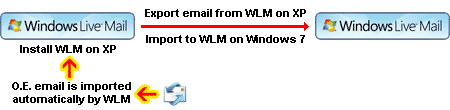
- Download Windows Live Mail on the Windows XP computer and install it.
- When Windows Live Mail installs on your XP computer it will detect Outlook Express and copy the email account settings as well as the messages. If it doesn’t, read how to copy email accounts from Outlook Express to Windows 7 and then transfer the email messages.
- When all the messages have been moved from Outlook Express to Windows Live Mail on XP, use the Export function of the latter to save a back up of the email to a folder of choice. Copy this entire folder on a flash drive or a DVD. Important: Remember to also move the Outlook Express address book and the email accounts data along with the messages. Shutdown the Windows XP computer because it’s work is over.
- Transfer the address book, email account information and exported Windows Live Mail messages (which were originally of Outlook Express) to the Windows 7 computer and dump them in a temporary directory.
- On the Windows 7 computer, open the Windows Live Mail program – it should be factory installed. If not, refer the instructions on how to install the Windows Live Mail.
- But before you transfer the Outlook Express email, import the email account data to avoid configuring Windows Live Mail manually. This will save you time as well as a lot of trouble if you had multiple accounts set up in Outlook Express and / or you don’t remember the settings for the account (especially the password and the incoming and outgoing email server details).
- Now with the “File” -> “Export” -> “Messages” functionality, move all the email messages to Windows Live Mail on Windows 7.
As I mentioned at the start, I took this convoluted approach to transfer Outlook Express email to Windows Live Mail on Windows 7 because the O.E. backup failed (for me)… it might just work for you. So try that first – it’s easier; read how to copy email from Outlook Express to Windows Live Mail for step by step instructions and screenshots.