
The sheer amount of information on the web is overwhelming – we have text, images, video, animations and much, much more. Though this information is freely available for viewing and downloading, most of it is under copyright. The creators specify the ownership details in the copyright statement, typically found at the bottom of the web page, because no one likes their original work to be used by others for profit.
However, it is impossible to prevent people from copying and using the text from your web site. Yes, there are laws and one can always sue but the fact remains, someone can always use textual information from your web site. Images and video, however, offer a neat way of protecting ownership by watermarks.
Sponsored Links
What is an image watermark?
I’m sure you would have come across images that have watermarks. So what is that? An image watermark is generally a semi-transparent (and sometimes, a fully opaque) bit of text or design element that’s put on an image to prevent illegal use of the graphic. Watermarks can be added using image editors… in fact, there are many free services available on the net that let you upload your image and add a watermark.
Once a watermark has been added to standard web image file formats such as JPGs, Gifs or PNGs, it becomes a part of the image. Depending on its placement and complexity of the image, one can try to remove the watermark or at least clean the image a bit.
Note: I do not encourage removing the watermark from images. These have been put for a reason – to protect the copyright and endorse ownership. Please do not misuse the information on this page to blatantly disobey the law. The instructions for deleting a watermark from an image provided below are for academic purposes only.
How to remove a watermark from an image
There are three popular web image formats – Gif, JPG and PNG. If you want to clean a watermark off such images, you have to employ an image editor such as Adobe Photoshop, PaintShop Pro, the free pixlr.com editor etc. Actually any graphic tool that has a “clone” utility can be used to remove a watermark. Having said that, the success of cleaning an image depends on its complexity, the placement of the watermark and its size.
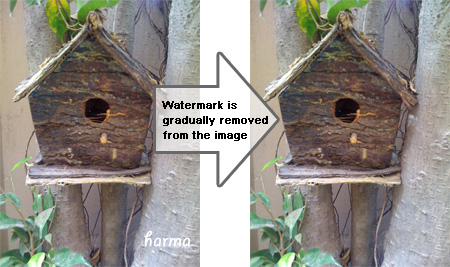
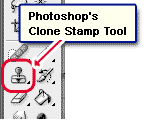 Below is an image with a watermark – my name. We shall now employ Photoshop’s Clone Stamp Tool to delete the watermark. Click on the icon or hit “S” on the keyboard. How does the clone stamp tool work? It lets you pick a spot on the image (a source) and clone or copy it on to another area. Thus, we need to replace the section of the image that has the watermark with similar content (pixels) so the first step is to pick a source point. Holding down the “Alt” key, click a point on the image that you feel can be copied over the watermark area without significant changes to that area – this is how we select the clone source. Feel free to use your judgement. I also advise on using a brush size that complements the image. For larger images, using a large brush size and vice-versa. Below are the settings I used for this image.



Some pointers for removing watermarks
- Zooming: you might like to zoom in to the watermark section to correctly clean it up.
- You also would have to specify the starting spots many times for better results especially when the watermark is large or has been placed over an area that changes in color or complexity. Make sure the source looks similar to the watermark area.
- In the example, above, the presence of the watermark on the tree trunk made it very easy for us to clean the image. Thus, the placement and size of the watermark as well as the complexity of the image determine how well it will be cleaned.
- Don’t waste your time in removing watermarks from smaller images as you won’t have sufficiently large area to clone.






Removing a watermark from an image is a copyright violation, punishable by fines up to $25,000