Set up Hotmail email on Windows Mail Vista
Sponsored Links
I don't remember much of the Windows Mail. However, I clearly recall being frustrated by not being able to set up and download Hotmail email using this program. I couldn't for the life of me fathom why Microsoft would provide such an unimpressive piece of software that was incapable of talking it the company's own email service! The default Vista mail program was quickly replaced with Windows Live Mail on my laptop.
But for those who have continued to use Windows Mail, I have some very good news. However before that, here is the background.
Why was it not possible to set up Hotmail on Windows Mail Vista?
Windows Mail Vista would simply not take a Hotmail email address. Any attempt to set up an email account of this service would immediately be nipped in the bud, as it were. The Windows Mail wizard would not let you proceed beyond the second screen!
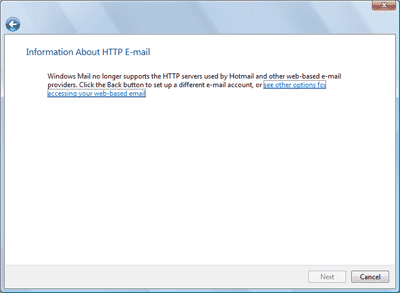
A lot has changed a lot since the release of the much maligned Windows Vista operating system with its incompetent email program; for instance, free Hotmail access using the POP email protocol. Even so, the problem persists! Hotmail email accounts still cannot be set up on Windows Mail if one chooses to walk down a path of honesty! When the program wizard sees hotmail.com after the '@' sign in the email address, it just dumps a failure message in front of you - refer image below.

So how can Hotmail be added and configured on Windows Mail? We'll use a little trick, of course!
I was able to set up and get Hotmail to work on Windows Mail without problems by following the steps below.
How to set up Hotmail email on Windows Mail Vista
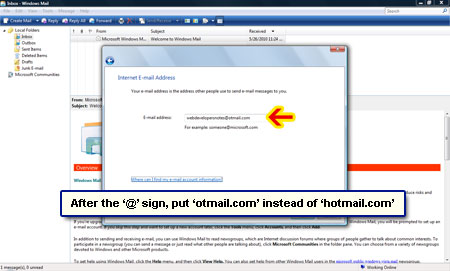
Though Hotmail POP settings are now available, Windows Mail doesn't show a screen asking for incoming and outgoing server information. Why? Because the moment you put an email address that ends in hotmail.com the wizard politely apologizes. The simple trick is to supply an incorrect email address which 'forces' the Vista's email program to ask for the mail server details. Once the Hotmail account is added on Windows Mail, the email address can then be amended.
If you are seeing this text, you need to install the Flash player and turn JavaScript on in your browser.
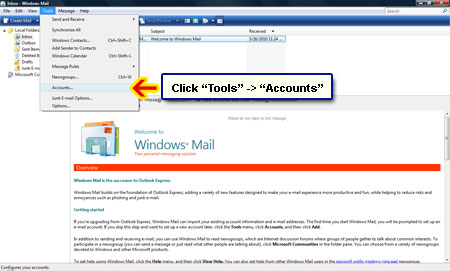
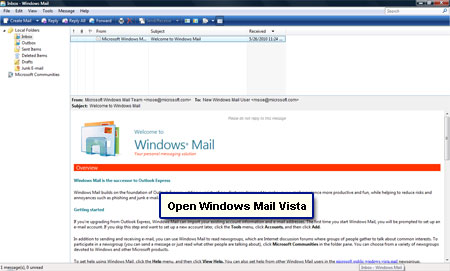
- Open Windows Mail and choose "Accounts" from the "Tools" menu [Slides 1 and 2].
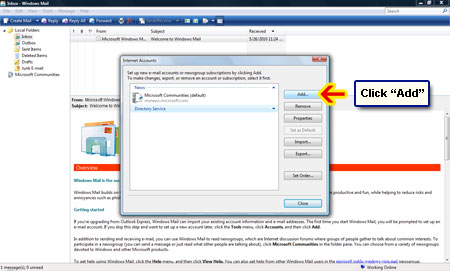
- Click the "Add" button in the Internet Accounts pop-up window [Slide 3].
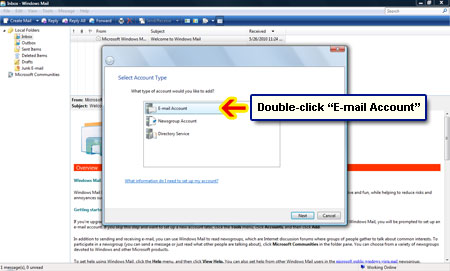
- Double-click on "Email Account" to move to the next screen [Slide 4].
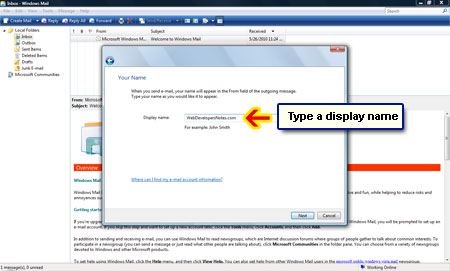
- Type in a display name [Slide 5].
- Now is the moment to lie! Enter your Hotmail email address but change the part after the@ sign. For instance, put otmail.com - yes without the leading 'h' [SLIDE 6].
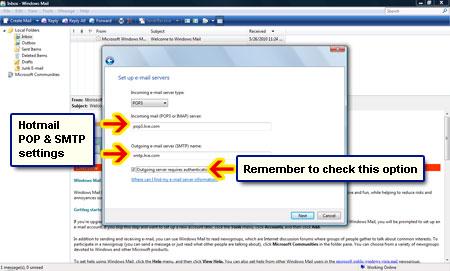
- You've tricked Windows Mail into showing the "Set up e-mail servers" screen. Supply the Hotmail POP3 settings [Slide 7]:
Incoming: pop3.live.com
Outgoing: smtp.live.com
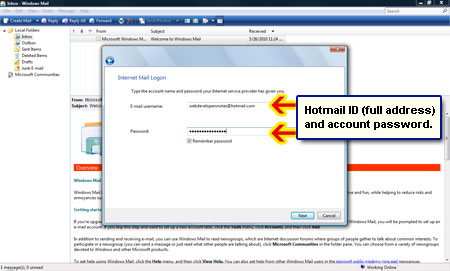
Put a check mark in front of "Outgoing server requires authentication". - Enter the username (full Hotmail email address) and the password in the corresponding fields [Slide 8].
- Congratulations! Hotmail email has been set up on Windows Mail Vista.
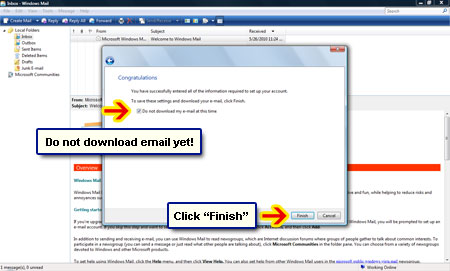
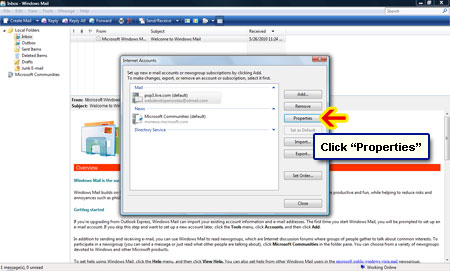
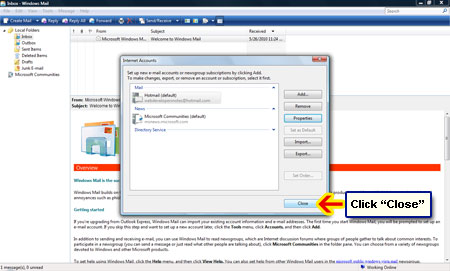
IMPORTANT: Check the "Do not download my e-mail at this time" option and click on the "Finish" button [Slide 9]. - You'll see that Hotmail email account is listed in the Internet Accounts window. Select it and hit the "Properties" button [Slide 10].
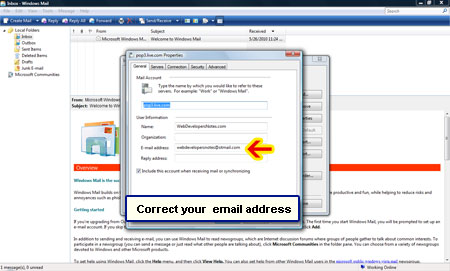
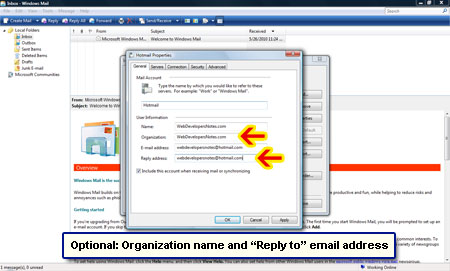
- Correct the email address under the "General" tab [Slide 11]. Though optional, you can also provide an organization name and a reply to address [Slide 12].
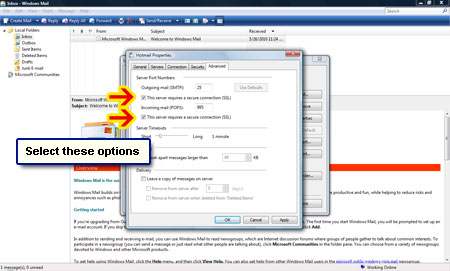
- Click "Advanced" and put a check for "This server requires a secure connection (SSL)" for BOTH outgoing mail (SMTP) and incoming mail (POP3). FYI, this will change the incoming mail port to 995 and that is the way it should be [Slide 13].
- Click "Apply" -> "OK". Close the Internet Accounts window and start receiving and sending mail using Windows Mail through the newly set up Hotmail email account [Slide 14].
Page contents: Set up Hotmail email on Windows Mail Vista: Instructions and screenshots.
Comments, questions, feedback... whatever!
Recent Articles
Recent Blog Posts
Popular Articles
- Hotmail Sign In page
- Create a Hotmail account - Instructions
- Create Gmail address
- Download and install Outlook Express
- Get your free Gmail address
- Outlook Express new version
- Create my own email address
- Browers for Windows list
- Get email address
- Color combinations for web sites and pages
- Create Yahoo ID
More web tips & tricks
- Outlook Express Help - tips & tricks (53)
- Windows Live Mail help and tips (36)
- Windows Mail help (25)
- Hotmail help and tips (42)
- Yahoo help & support (45)
- AOL email help (26)
- Gmail help and tips (36)
- Internet tips & tricks (12)
- Web Design tips & tricks (33)
- HTML, Javascript tips tricks (68)
- Web Promotion tips & tricks (8)
- Graphics tips & tricks (20)