Using your free Yahoo email account, you can send email messages in both plain text and rich text formats. The latter options allows you to change font color, size, format, font face, apply free Yahoo stationery (not stationary!) and much more.
On this page we shall explore how to send fancy email messages using Yahoo. The instructions have been worked using the All-new Mail Yahoo version so if you are using the Classic, I suggest you switch to the new interface.
Sponsored Links
First we need to make sure that Rick Text email format option is on. Does your new email message tab window look similar to one below… with the toolbar? If not, you are working in plain text mode. Please click on the blue colored “Rich Text” link located to the right of the email subject field.
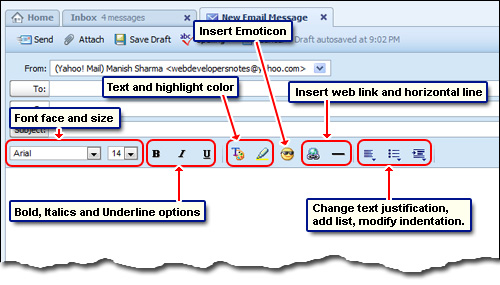
You should see the free Yahoo stationery panel on the right and the toolbar with several icons just above the large text box.
Let us explore the different icons in this toolbar.
- The first two drop downs let you choose a font and the text size for the email message. By the way, the entire email message doesn’t need to be in the same size or font. Simply select text in the message (click and drag the mouse) and then pick up the font you want and its size. The same is true for text color – refer below.
- The next three icons will make the chosen text (or the entire message) bold, italicized or underlined. I suggest you don’t use the underline option because it might confuse the recipient – underlined text is generally regarded as a web link.
- Clicking on the Text color icons displays a color palette. Pick a color you like. A quick tip: make sure there is ample contrast between the background and foreground (text) colors else the message would be difficult to read… and a pain to the eyes.
- Important phrases or even full sentences can be highlighted in a color of your choice. Select the text that requires emphasis and then pick a highlight color from the palette.
- Emoticons are small images that can be inserted quickly. Unfortunately, you cannot use your own emoticons in Yahoo and have to do with the ones available.
- The next icon is quite interesting because it lets you insert a web link – the URL of a web page or a web site. Click on it and enter the web address. You can also select some text first and then insert a URL which will make that text into a hyperlink.
- The last four icons are for inserting a horizontal line, changing the justification of the text (right, center and left), inserting a list and modifying the text indentation.
Important points when using the rich text option in Yahoo
- Any formatting that you have done when composing the message in rich text will be lost forever if you choose “Plain Text“. Thus, switching back to Rich Text will not bring back the formatting.
- If you click on the email stationery it will be applied instantly to the message. Though the text color, highlight color and indentation will be persevered once the stationery is used, font size and font face might change depending on the layout chosen.