Delete photos and email attachments from Yahoo
Sponsored Links
How do you delete photos? I want the email but don't want the photo attachments. There is a way to get this done?
Gareth Morgan
I am not able to delete photos from an email I received at my Yahoo account. I select them but there is no delete option. Please let me know how to do this.
Nasreen
Got an email with objectionable contents? Maybe there is a photo attachment that, put it mildly, is unsavoury. And you want to preserve the message but delete the photo attachment. You'll be surprised that the solution to not-so-common issue is very simple. To delete email attachments including photos from Yahoo (or any other email account), all you need to do is to forward the message to yourself getting rid of the offending material first. Let us see how to do this.
Quickly delete email attachments and photos in a few steps
Though the instructions and screenshots below are from the Yahoo's All-new Mail interface, it's fine if you are on older Yahoo mail version because the functions we require to delete email attachments including photos are present in both and work in the same manner.
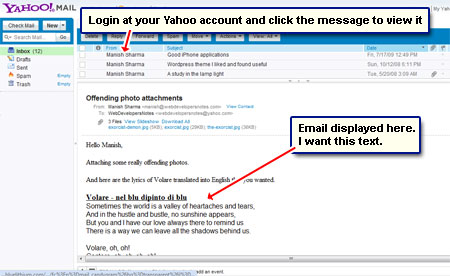
All set? Login at your Yahoo account and click the message to view it in all its glory. We'll use an example of an email that has photos that I want to get rid of and text which I want to keep.
If you are seeing this text, you need to install the Flash player and turn JavaScript on in your browser.
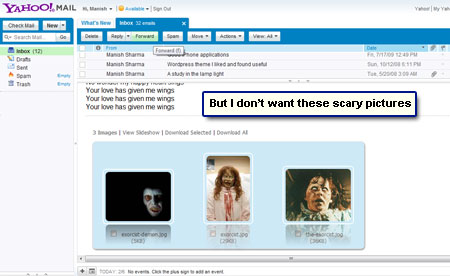
- Select the email message that has the photos (attachments) you want to delete - [Slide 1 and 2]
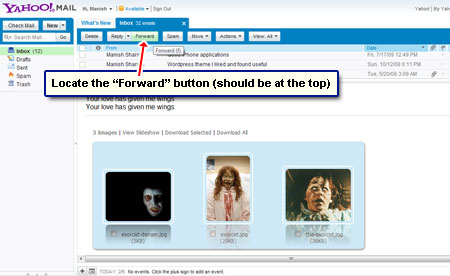
- Click the "Forward" button at the top - [Slide 3].
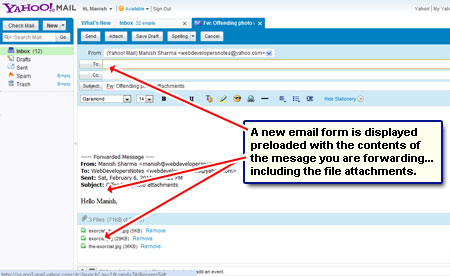
- A new compose message form is shown preloaded with the contents (including the photo attachments) of the email you are forwarding - [Slide 4].
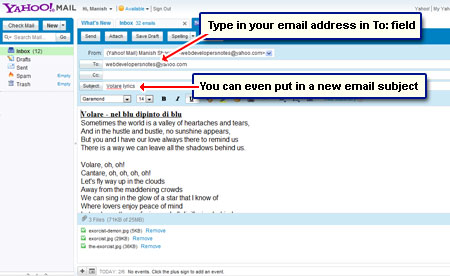
- Enter your Yahoo email address in the "To:" field - yes, the same account address that you are using presently. You can also change the email subject or type in a new one - [Slide 5].
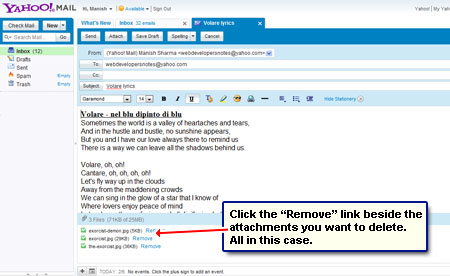
- Click the "Remove" link beside each of the email attachments you want to get rid of - [Slide 6].
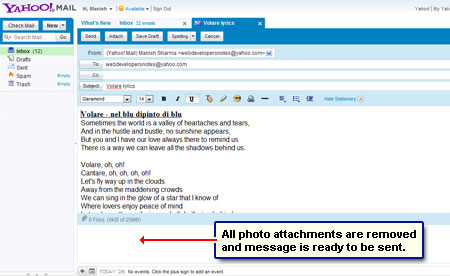
- In our example, we've deleted all the photos email attachments from the message - [Slide 7].
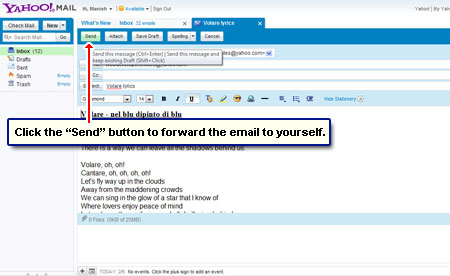
- Click the "Send" button to forward the amended (and pruned) message to yourself - [Slide 8].
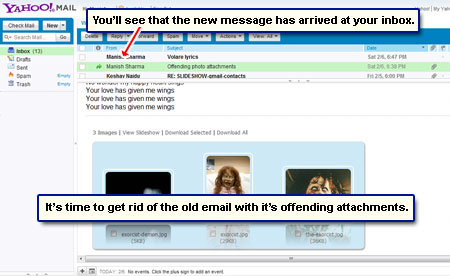
- This email will arrive at your account almost instantly - [Slide 9]. Now we have to get rid of the earlier email.
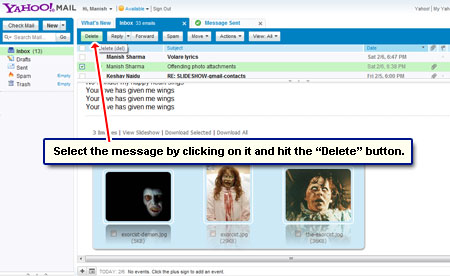
- Select the previous message and hit the "Delete" button - [Slide 10].
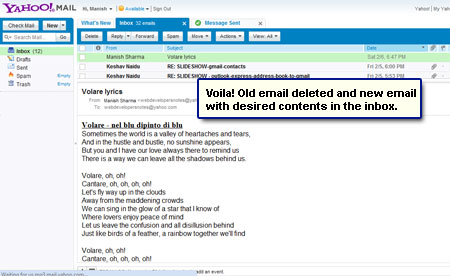
- That's it! You've successfully been able to delete the photos or other email attachments and have kept what you want - [Slide 11].
One last thing remains. Make sure you empty the "Trash" folder to completely remove the offending message from your account.

Page contents: Delete photos and email attachments from Yahoo mail: Instructions with screenshots for beginners.
Comments, questions, feedback... whatever!
Recent Articles
Recent Blog Posts
Popular Articles
- Hotmail Sign In page
- Create a Hotmail account - Instructions
- Create Gmail address
- Download and install Outlook Express
- Get your free Gmail address
- Outlook Express new version
- Create my own email address
- Browers for Windows list
- Get email address
- Color combinations for web sites and pages
- Create Yahoo ID
More web tips & tricks
- Outlook Express Help - tips & tricks (53)
- Windows Live Mail help and tips (36)
- Windows Mail help (25)
- Hotmail help and tips (42)
- Yahoo help & support (45)
- AOL email help (26)
- Gmail help and tips (36)
- Internet tips & tricks (12)
- Web Design tips & tricks (33)
- HTML, Javascript tips tricks (68)
- Web Promotion tips & tricks (8)
- Graphics tips & tricks (20)