Both POP and IMAP are enabled on all free AOL email accounts. This means any email client that has support for these protocols (almost all of them do), will let you download and store messages on your computer. So what is the difference between IMAP and POP?
IMAP is ideal for users who plan to have everything organized. This protocol synchronizes your online account with one on your computers and other devices (check out how to get AOL on iPhone using IMAP).
Sponsored Links
POP (Post Office Protocol) is older to IMAP and may not be a good bet for the present times when people access their accounts from multiple devices. POP simply helps in fetching messages from the server. Thus, if you use a mobile phone and a computer, the email account on these two devices would not be the same. Messages sent from your computer would not show up in the Sent folder of the mobile phone. This is the limitation of POP.
Windows Mail Vista: set up and configuration steps for AOL email accounts
Before I tell you the steps involved in setting up and configuring an AOL email account in Windows Mail please note that this software is no longer being supported and developed by Microsoft. The company strongly recommends that users move to Windows Live Mail.
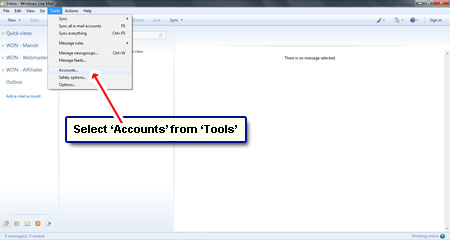
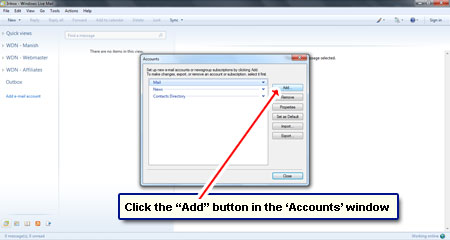
- In the Windows Mail program, click “Tools” and choose “Accounts” [Slide 1].
- Hit the “Add” button in the Internet Accounts window [Slide 2].
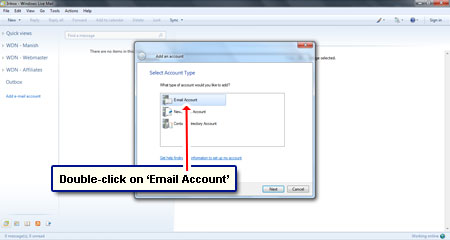
- Select “Email Account” option in the next screen [Slide 3].
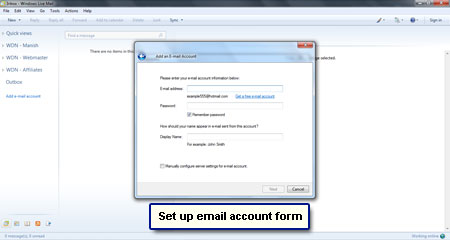
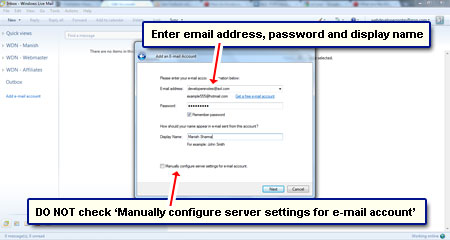
- Type in the name you want to be displayed; this can be your real name or that of your business / organization [Slide 4].
- Enter your full AOL email address [ Slide 5].
- From the “Incoming e-mail server type” menu, choose the IMAP option [Slide 6].
- Provide Windows Mail with the IMAP settings of AOL [Slide 7]:
Incoming: imap.aol.com
Outgoing: smtp.aol.com
Put a check mark in front of “Outgoing server requires authentication“.
- Type in the e-mail username (the part before the @ sign in the AOL email address) and the account password [Slide 8].
- Great! The AOL email account has not been set up on Windows Mail. Now on to the configuration steps [Slide 9].
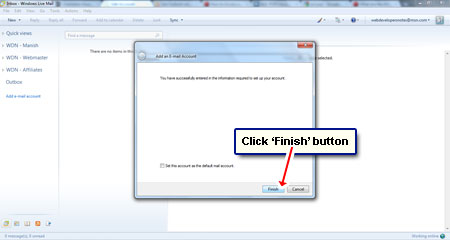
- Clicking the “Finish” button will immediately result in downloading of folders by the email client [Slide 10]. Cancel this process.
- You’ll find yourself back in the Internet Accounts window. Select the newly setup AOL account and click “Properties” button [Slide 11].
- Enter your organization name and reply to address under the “General” tab – this is completely optional [Slide 12].
- Under “Advanced“, put the outgoing mail (SMTP) port as 587 and check the “This server requires a secure connection (SSL)” option [Slide 13]. Click “Apply” followed by “OK“. Close any pop-up window that remains on the screen.
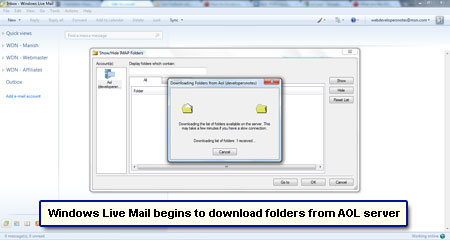
- Windows Mail will begin to download the folders from the AOL server [Slide 14].
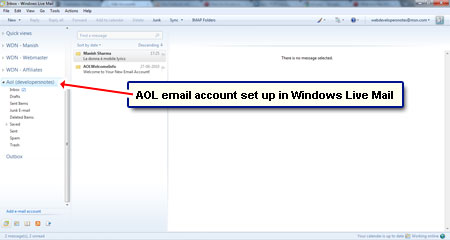
That’s it! You’ve successfully set up and configured your AOL email account in Windows Mail Vista. Enjoy and use email responsibly!