Internet Explorer is the default web browser on the Windows. It’s typically installed in the same disk drive that holds the operating system. Though regarded as a relatively unsafe and error prone browser, it still is the most widely used. Like other modern browser programs, Internet Explorer too stores all kinds of information:
- Temporary Internet Files – files from web sites you’ve visited
- Passwords of web sites where you have an account. These are stored only if you’ve instructed Internet Explorer to save them.
- Form data: The information entered by you in online forms which may include your name, address, email, etc.
- Web browser history: List of web sites you’ve visited in the past days.
- Cookies – small files that are created based on the instructions of certain web sites… not all web sites though.
Sponsored Links
As you can see, Internet Explorer accumulates a lot of very sensitive information. And since this browser has horrendous security and is frequently targeted by hackers, your privacy and peace of mind is at risk. Let us see how we can delete the temporary internet files and clean up the browser cache directory.
Internet Explorer version 6: Delete the temporary internet files to recover space
Click on “Tools” from the top menu and select “Internet Options“. Under the “General” tab click on “Delete Cookies” to remove all the stored cookies and “Delete Files” to clean up the temporary internet files directory. You can also get rid of the entire web browsing history by hitting the “Clear History” button.
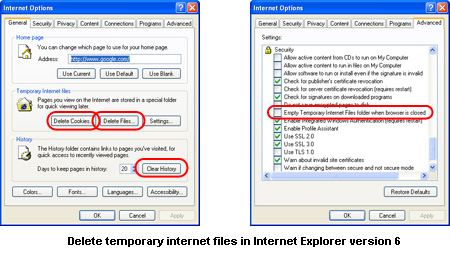
Also, Internet Explorer allows you to remove all traces of web surfing each time you close the program. Go to the “Advanced” tab, scroll down to locate “Empty Temporary Internet files folder when browser is closed” and put a checkmark before it. Click on “Apply” and then the “OK” button.
By the way, it’s a well-known fact that the above process will not ensure that all the races of your online activity are removed. You might need additional programs to erase web browsing history of Internet Explorer.
Delete temporary internet files in Internet Explorer version 7
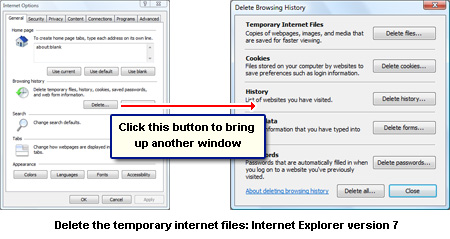
The newer version of Internet Explorer browser gives you a lot more flexibility in deleting the temporary internet files (cache), password, form data, cookies and the history – it also does a much better job. Click on “Tools” and select “Internet Options“. In the pop-up window, click on the “Delete” button under the “Browsing History” section. You can now remove the different stored information selectively.
FYI, in both versions of the browser, you can specify how much space should be allocated to the temporary internet file folder and the number of days for which the browsing history should be stored. You can find it in the “Options” window.
Also refer how to delete the Internet Explorer browsing history for step by step instructions.