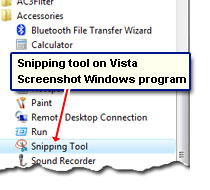
The Vista operating system has an inbuilt screenshot Windows program called the Snipping Tool. It can be found under the “Accessories” list and is a nifty little utility that lets you select and capture parts of the screen instead of the whole.
In how to take a screenshot of a web page, I provided instructions on using the PrtSc key to get the entire information of the screen or the active window and then employing the free Paint graphic editor to save it as an image. But with the Snipping tool you can take a screenshot of a selected area of the screen, annotate what you have captured and save it as an image or send it over email. It’s a screen-capture and a basic image editor rolled into one!
Sponsored Links
How do you take a screenshot with the Windows Vista Snipping Tool program?
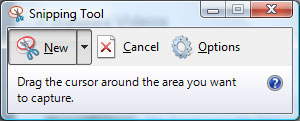
When you start the utility, a small windows similar to one above pops up and the entire screen is fades out slightly. There are four ways in which you can capture what’s on the screen:
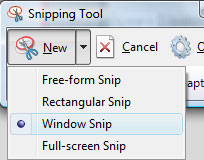
- Free-form Snip: Drag the mouse cursor around the section you want to capture.
- Rectangular Snip: The mouse cursor turns to a large double-crosshair icon which you can then drag to select a portion of the screen.
- window Snip: Click on the window you want in the screenshot. A red rectangle appears when you move the mouseover a window signifying its been selected and is waiting to be “captured”.
- Full-screen Snip: Get the screenshot on the entire Windows screen – no need of downloading and installing a separate screen-capture utility.
Choose the one that first your requirements. And if you don’t like what you get, you can quickly discard it by hitting the “Cancel” or the “New” button and start afresh. All “Snips” created by this program have an extra white space around them. This is where you can add your comments and annotate the screen capture.
Saving or emailing the screenshot
You can email or save the screenshot as an image using the Windows Vista screenshot capture and annotation Snipping Tool.
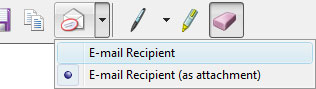
The “Snip” can be sent included in the email or as an email attachment. Please note – of you don’t have an account configured in your default email program, you might not be able to use this feature. In such cases, I suggest saving the screenshot as an image and then sending it using your web-based email accounts such as Hotmail, Yahoo! Mail, Gmail…
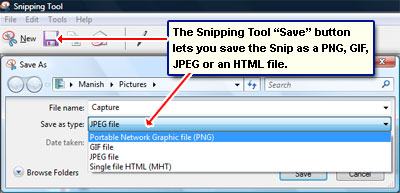
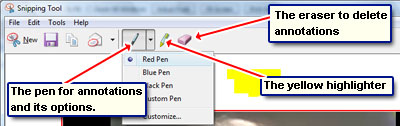
Annotate screenshot: the Pen and the highlighter
Snipping tool provides you a pen and a highlighter to annotate the Snip. You can configure various options for the pen – choose the color, thickness and tip. The highlighter is the standard yellow marker. The eraser will delete the annotations if you move and click over them.
Unfortunately, the one thing I don’t like about this screenshot windows program is the lack of ability to add text. The point is, if one needs to annotate the “Snip” with a lot of text, the only option is to use the mouse to write and that is not very easy to do.
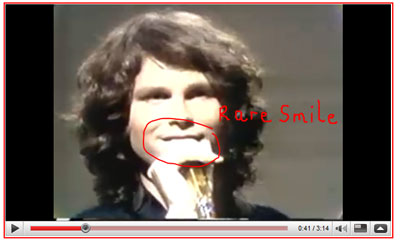
Here is a Snip from me showing a “rare smile” from the troubled singer, Jim Morrison taken from a video of his on Youtube.com.