My son loves this and I suppose you will too! There are over 100 free Yahoo mail stationery templates that you can use to send your messages. These have been segregated into categories so that you can quickly locate the one you want. By the way, new stationery is continually been added and the seasonsal ones will be highlighted.
In fact, the two versions of Yahoo Mail have different email stationery and there is also a difference in how they are applied. We shall first look at the new version (All-new Mail) and then explore Yahoo Mail Classic interface.
Sponsored Links
Using the free Yahoo email stationery in All-new Mail interface
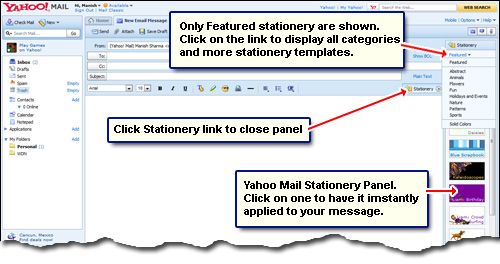
The free Yahoo email stationery is presented in a panel to the right displayed only when you create a new message or send a reply. The stationery can be applied to the message in a single mouse click. When the panel is first displayed it shows only the Featured stationery. Now you can either pick one immediately or check out others by clicking on “Featured” with the small downward arrow beside it. At the time of writing, in addition to Featured, there are 9 other categories – Abstract, Animals, Flowers, Fun, Holidays and Events, Nature, Patterns, Sports and Solid colors. All these, excepting the last one, include images. The Solid colors category lets you choose a single background color for your email message. You can also close the Yahoo! Stationery panel by clicking on its button.
Yahoo! Mail remembers the stationery you had last applied so you’ll see the same one even if you log in after a few days – no need to waste time hunting for your favorite stationery! Also you can change the email stationery any time; at the start of new email message or when you have fully composed it. All you need to do it click on another layout and it will be applied instantly. However, please remember that different Yahoo mail stationery have different font style, colors and indentation.
Using Yahoo Mail stationery in the Classic version
Click on “Compose” button and choose “Email message“. The page reloads with blank form fields awaiting your inputs. Make sure you have the “Rich Text” option on. Yahoo will not apply stationery to plain text emails. Rich text email composition displays a toolbar with many icons – the last one is for stationery. Clicking on it displays a pop-up with the Featured layouts. There are also other categories – Abstract/Patterns, Activities, Flowers/Romance, Nature, Hello Kitty, Special occasions and, of course, Solid colors. Click on a stationery thumbnail to have it applied to your email message and then close the pop-up window by hitting “Done“.
Please note the stationery in Mail Classic is different from that in All-New Mail.
Can I create your own Yahoo Mail stationery?
Unfortunately, at the time of writing, there is no way you can create your own stationery in Yahoo. However, there are more than 100 available including ones for Christmas, Valentine’s Day, baby showers etc. which, I suppose, would be more than sufficient for your needs.
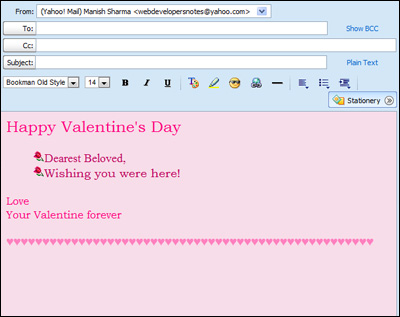
But with a little ingenuity you can create a sort of stationery template that would be quite unique. With solid colors along with styles for the text (an appropriate font and colors) you can come up with a nice looking layout. Take a look at the snapshot below in which I use a nice pink background and colored the heading and text in a different shade. The small rose image is an emoticon and the heart is an ASCII symbol which is displayed with the ALT-3[Num Pad] keystroke combination.