Copy and move Outlook Express address book to Windows Live Mail on Windows 7
Sponsored Links
Surprise, surprise! Outlook Express is missing from Windows 7. And to make things worse (more confusing!) for someone who has been using a Windows XP computer, the Address Book has been replaced with Windows Contacts. The Microsoft suggested alternative to Outlook Express on Windows 7 is the new Windows Live Mail email client. It should come installed with the operating system and in case it doesn't, you can quickly download Windows Live Mail for free from the company's web site.
To move the Outlook Express address book to Windows 7 computer running Windows Live Mail, we need to export it in the standard CSV file format and then import it via the email client to populate Windows Contacts. Comma Separated Values (CSV) is a well-known and platform /applications independent format. These simple ASCII text files can be opened in programs such as Microsoft Excel and can even be imported in databases such as MySQL. The figure below explains the easy two step process of transferring the Outlook Express address book to Windows Live Mail on Windows 7.

Move address book entries from Outlook Express to Windows Contacts on Windows 7 - how to instructions
The first step is to save the Outlook Express address book to the standard CSV format and then move this file and import the information into Windows Contacts on Windows 7 operating system via the Windows Live Mail email program. Below are detailed instructions and the slideshow has the screenshots for your reference.
If you are seeing this text, you need to install the Flash player and turn JavaScript on in your browser.
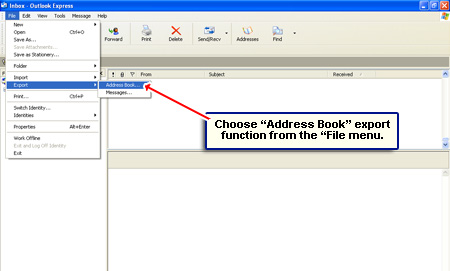
- Open Outlook Express on your Windows XP computer and choose "Address Book" export function from the "File" menu - [Slide 1].
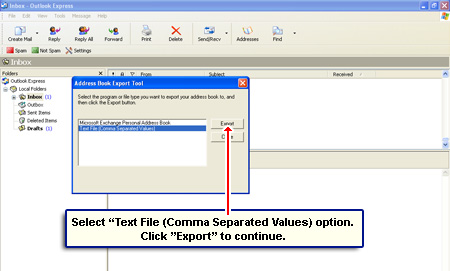
- Select "Text File (Comma Separated Values)" option and click the "Export" button to continue - [Slide 2].
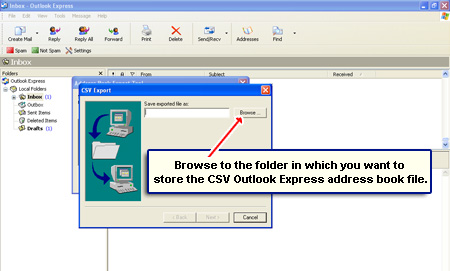
- Move to the folder in which you want to store the exported CSV Outlook Express address book (use the browse function) - [Slide 3].
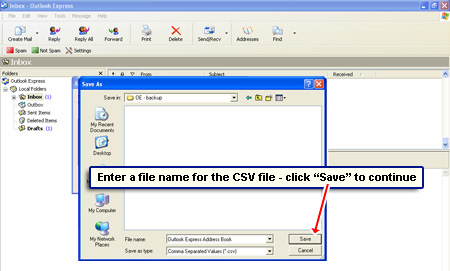
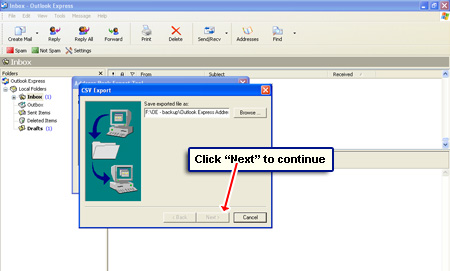
- Enter a file name for the CSV file and click "Save" - [Slides 4 and 5].
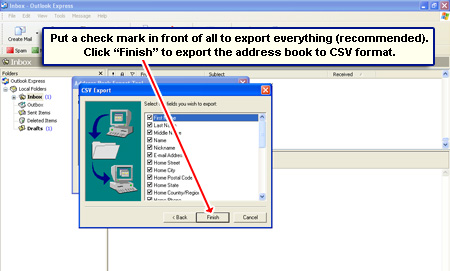
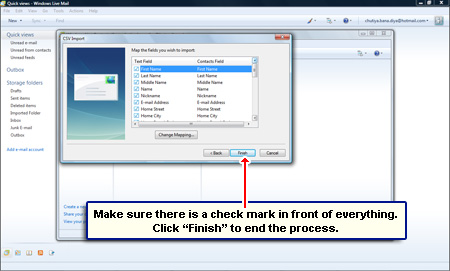
- Go to the next screen and make sure each item has a check mark in front. This ensures that all information from the Outlook Express address book will be exported - [Slide 6].
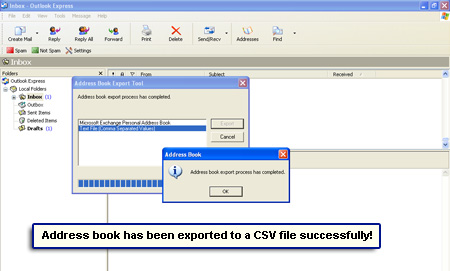
- Click "Finish" when done. A pop-up will display a confirmation message once the address book has been successfully saved to the CSV format - [Slide 7].
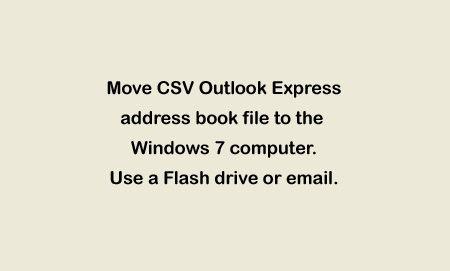
- Copy and move the CSV Outlook Express address book to the Windows 7 computer - use a Flash drive or just email - [Slide 8].
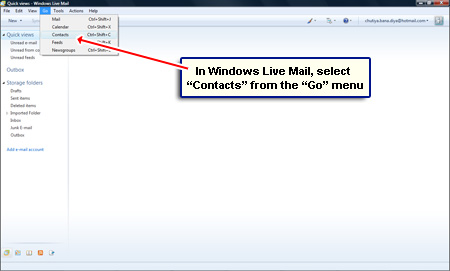
- Open Windows Live Mail email program in the Windows 7 computer.
- Pick up "Contacts" from the "Go" menu - [Slide 9]. You need to unhide the Windows Live Mail toolbar to get these options.
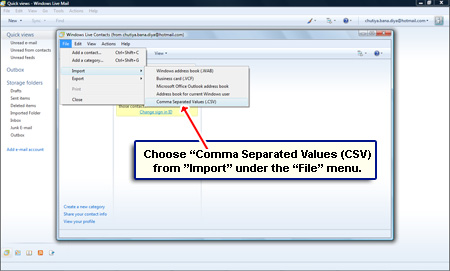
- It's now time to import the entries from the CSV file into Windows Contacts. Choose "Import" -> "Comma Separated Values (CSV)" - [Slide 10].
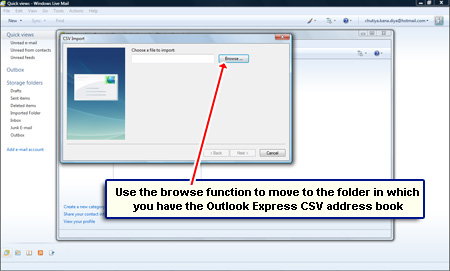
- Browse to the folder in which you have placed the Outlook Express CSV address book file - [Slide 11].
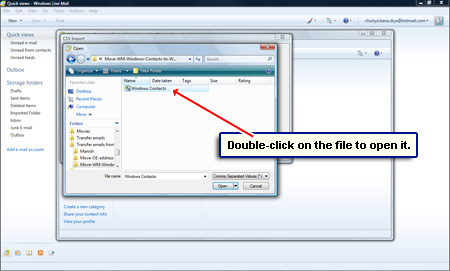
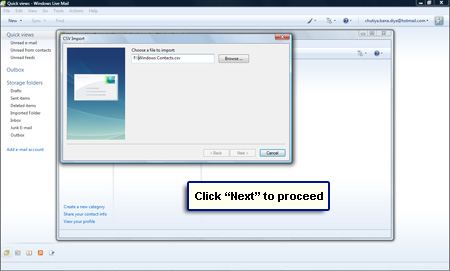
- Double-click this file to open it - [Slides 12 and 13].
- The system will ask you to choose the fields you like to import. I suggest selecting everything if that's what you had done when you had exported the data from Outlook Express - [Slide 14].
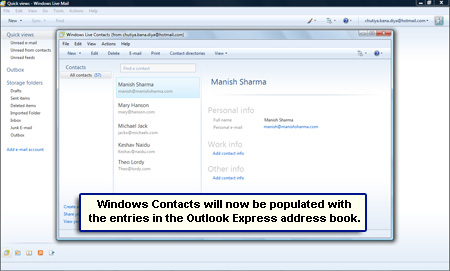
- Windows Contacts will be populated with Values from the CSV file - [Slide 15].
Congratulations! You have been able to successfully move the entries from Outlook Express address book to the Windows Contacts application in Windows 7.

Page contents: Instructions to copy and move the information in Outlook Express address book to Windows Live Mail on Windows 7 and populate Windows Contacts in the new operating system.
Comments, questions, feedback... whatever!
Recent Articles
Recent Blog Posts
Popular Articles
- Hotmail Sign In page
- Create a Hotmail account - Instructions
- Create Gmail address
- Download and install Outlook Express
- Get your free Gmail address
- Outlook Express new version
- Create my own email address
- Browers for Windows list
- Get email address
- Color combinations for web sites and pages
- Create Yahoo ID
More web tips & tricks
- Outlook Express Help - tips & tricks (53)
- Windows Live Mail help and tips (36)
- Windows Mail help (25)
- Hotmail help and tips (42)
- Yahoo help & support (45)
- AOL email help (26)
- Gmail help and tips (36)
- Internet tips & tricks (12)
- Web Design tips & tricks (33)
- HTML, Javascript tips tricks (68)
- Web Promotion tips & tricks (8)
- Graphics tips & tricks (20)