The popular email program, Outlook Express, stores all the contacts information in an Address Book application. If you prefer accessing email through Gmail instead of Outlook Express, you can make use of all the address book data, assuming, obviously, that you have at least some contacts information stored on your computer.
Moving the Outlook Express address book to Gmail involves exporting the data from the email program and then importing it to the web based email account. The first step, therefore, is to save the Outlook Express address book as a backup – please refer the link for step by step instructions. This backup will be in the Comma Separated Values (CSV) file format.
Sponsored Links
Why CSV? Because it’s a well-recognized and accepted format used extensively to transfer data from one application to another. As you can understand, the contact data of an individual consists of several fields like first name, last name, email address etc. In a CSV file, these are separated with the comma punctuation mark. FYI, Comma Separated Value files are simple text files that can be opened and viewed in programs like MS Excel or even Notepad.
Steps to move address book to Gmail
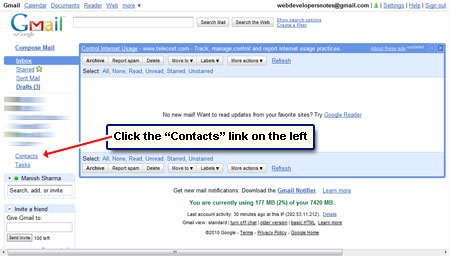
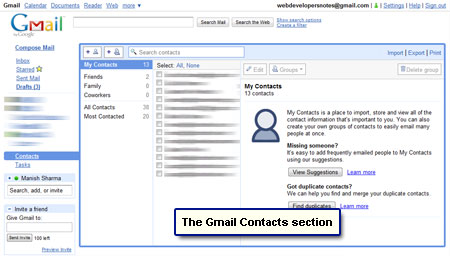
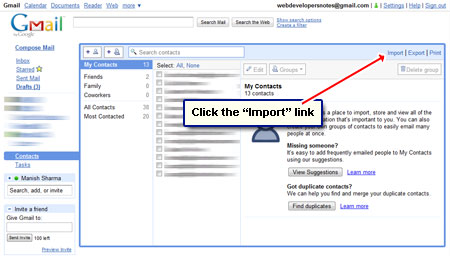
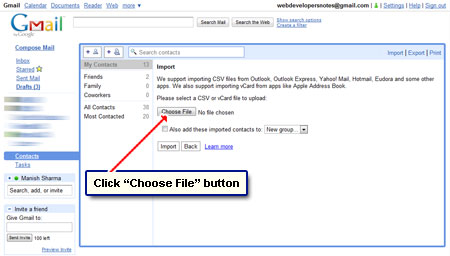
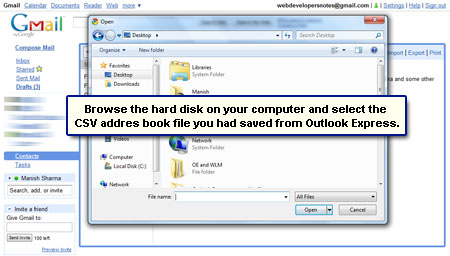
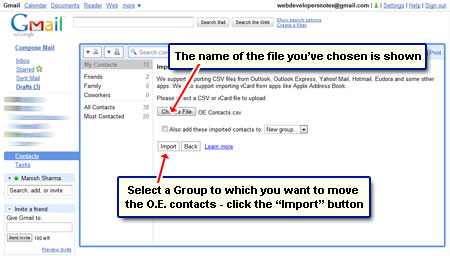
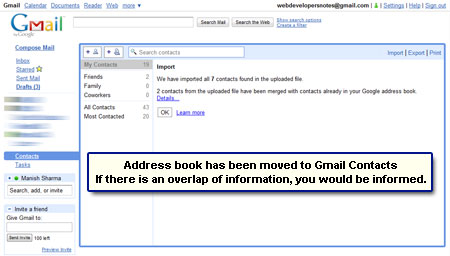
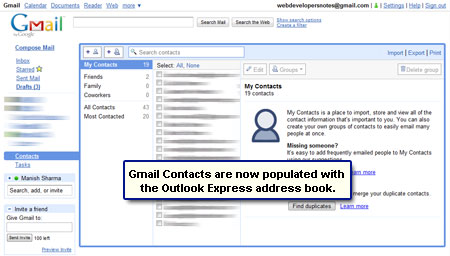
Once the backup of the address book has been saved as a CSV file, you are ready to move it to Gmail contacts. Open a browser window and log in at the email service. Follow the steps below and refer the screenshots in the slideshow when in doubt.