
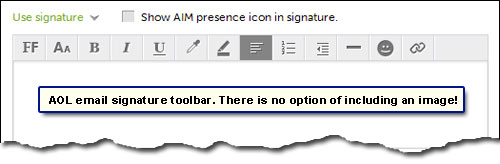
At AOL, the email signature rich text toolbar has no option of including a picture (refer figure below). But there is an easy way put an image directly in the AOL email signature. You can have your business / company logo, an avatar or even your photo included in each email message you send from the account.
Sponsored Links
The only requirement is to have the image file online. This should not be a problem for people who have a web site; they can simply put the file on the web server. For the rest (the majority), I suggest uploading the image file to a service that lets you share images. Facebook comes to mind immediately, right? So, as long as you have a web site or a Facebook account, you can quite easily put an image in the AOL signature.
How to include an image (business logo) in the AOL email signature
Don’t jump to the instructions yet. Read the important points below:
- Any image presently online – on a web site or Facebook – can be put in the AOL email signature. You just have to make sure that it is public.
- More than one image can be included in the signature. However, unless you have a very valid reason, keep the number to a minimum. Remember, a single image has a greater impact and looks much more slick!
- You can’t resize the image once you put it in the signature. Make sure the dimensions are apt.
- In addition to the width and height, the file size of the image should be optimized so that it takes minimum time to load.
Once the image is online on a server (company web site or an image host), all that’s required is to employ the copy and paste commands to embed it in the email signature.
The steps below have been performed in the Google Chrome web browser running Windows 7 computer using the AOL webmail standard interface.
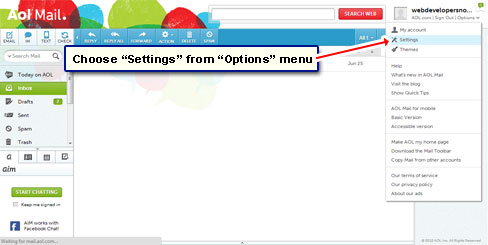
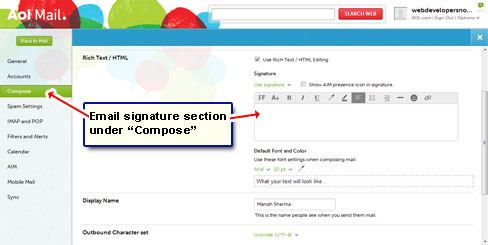


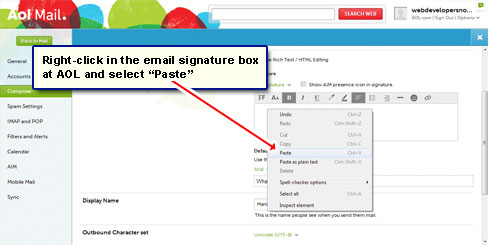

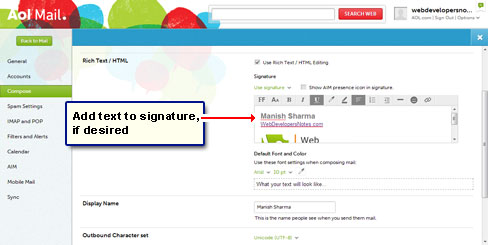


As you can gather, the process of putting an image in the AOL email signature is quite simple and should take you not more than a couple of minutes. By the way, if you ever delete the Facebook image or change its sharing settings to anything but public, it would stop appearing in the signature.