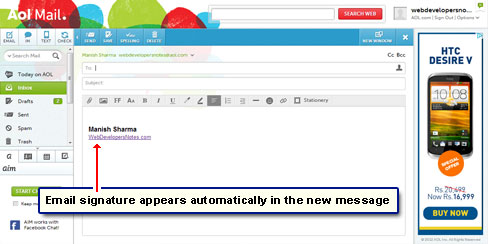
An email signature is small bit of information that is attached at the end of a message. Email signatures can be included in new messages, replies and forwards and, typically, contain the name and contact details, images (logo), web site URL and any additional email addresses. Just like other popular email services, one can create an email signature in AOL too.
In this article, I shall provide instructions on how to make a simple but effective email signature for your AOL account. The steps have been worked out on the AOL Standard webmail interface using the free Chrome web browser running on a Windows 7 computer.
Sponsored Links
How do I create an email signature at AOL?
Let us start by building the foundation. Read the brief on email signatures for tips, ideas and to understand what all you want to include. By the way, you can always change things later if not satisfied with your earlier signature!
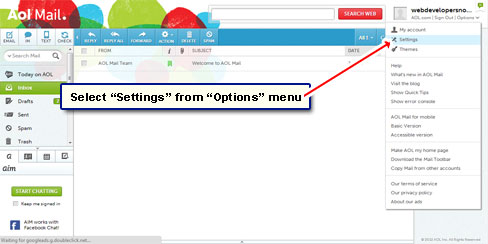
- Click the “Options” link (close to the top right) and choose “Settings” from the menu [Slide 1].
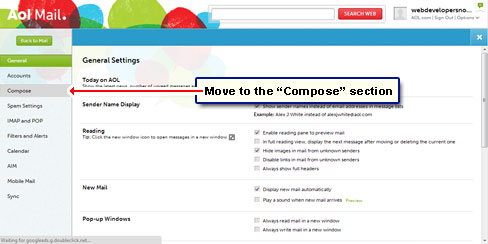
- The “General” section would load [Slide 2].
- Move to “Compose” by clicking on its link [Slide 3].
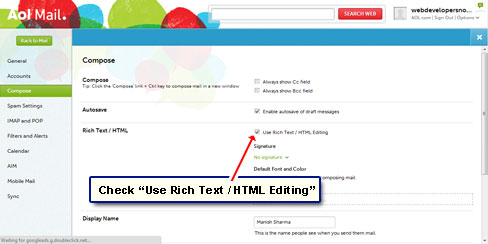
- Put a check on the “Use Rich Text / HTML editing” box [Slide 4].
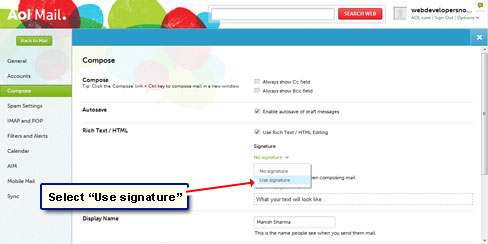
- Since you wouldn’t be having an email signature at the AOL account, click “No Signature” [Slide 5] and select “Use signature” [Slide 6].
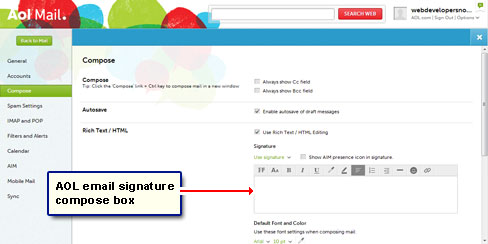
- This opens a large text box with a toolbar at the top [Slide 7]. It is in this box that we will compose our email signature.
- The toolbar above the box has many options. For instance, you can choose which font to use in the email signature or the color of the text etc. [Slide 8]
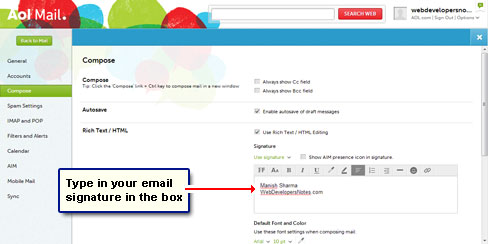
- We will first put in the text for the email signature and then start playing with the icons in the toolbar [Slide 9].
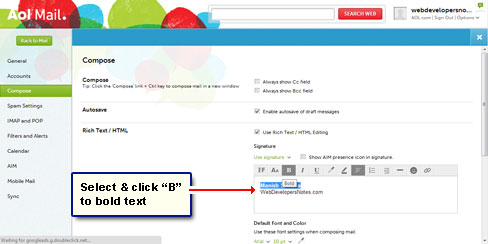
- To bold some text, select it and click the icon marked “B” [Slide 10].
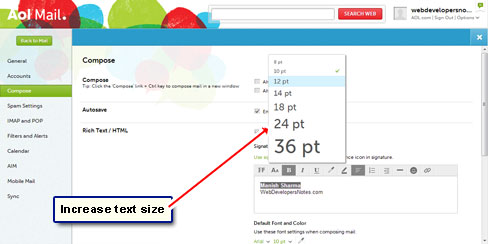
- Similarly, you can increase the font size and change the color as well [Slide 11].
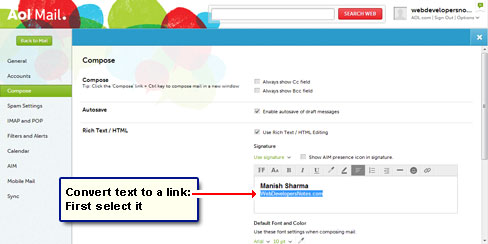
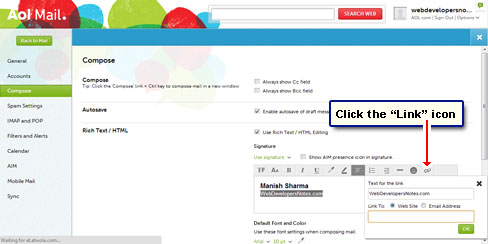
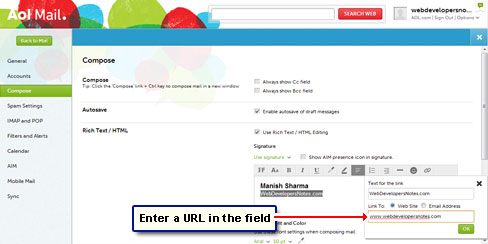
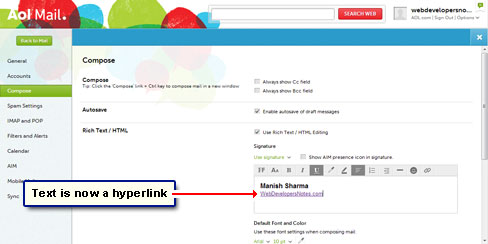
- Web site addresses can also be included in the AOL email signature. Select the text [Slide 12] and click the “Link” icon from the toolbar [Slide 13]. This brings up a small pop-up [Slide 14]. Enter the full web address in the blank field [Slide 15] and click “OK“. Voila! Link created! [Slide 16].
- The eagle-eyed would have noticed that with the “Link” feature one can include an email link too [Slide 17].
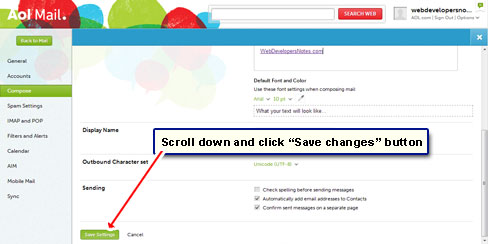
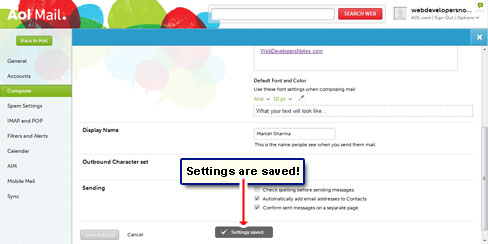
- Scroll down to save the email signature you’ve created [Slides 18 and 19].
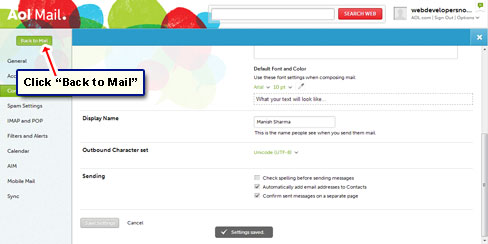
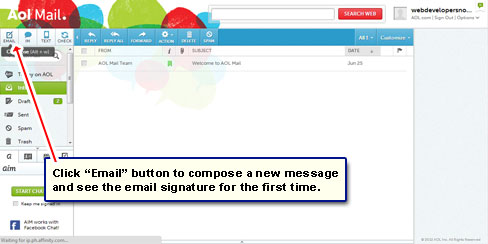
- To see how it works, click “Back to mail” and then hit the “Email” icon [Slides 20 and 21].
- The AOL email signature will be displayed in its full glory in the blank email form [Slide 22].
Once you’ve learnt how to create a simple email signature at AOL, you might also be interested in throwing in an image such as an avatar, a business logo or perhaps even a photo. If you are wondering how this can be done because no such option is available in the toolbar, read how to put an image in AOL email signature.