AOL webmail is a ‘web-based email program’ that lets you access messages and other information from any computer provided a web browser is installed and an active net connection is available. After signing in through the AOL login page, the webmail interface is loaded through which you can compose email, send replies and forwards, sort and organize messages etc.
The webmail interface at AOL is intuitively designed and is one of the best in the industry – my opinion. It has several features through which you can use the email account efficiently. The aim of this article is to provide a short introduction to these features and help you find your way around quickly.
Sponsored Links
How to use AOL’s webmail – the easiest way to check email!
The AOL webmail comes in different versions and is designed to work with most, if not all, web browsers.
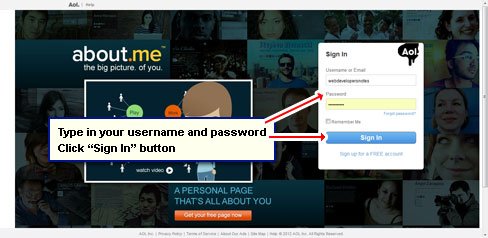
- Type in webmail.aol.com or simply click that link to open the login page [Slides 1 and 2]. Enter the username and password of your email account and sign in to access AOL webmail.
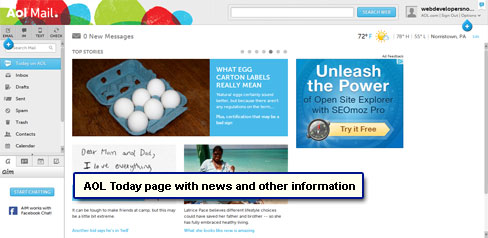
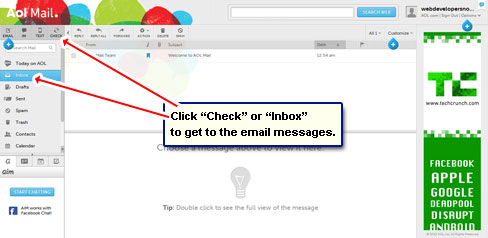
- The “Today on AOL” page greets you on successful sign in [Slide 3]. Not interested in the tit-bits shown? Get rid of this page the next time you login – refer AOL email account settings. For now, simply click on the “Check” button or the “Inbox” link to access messages [Slide 4].
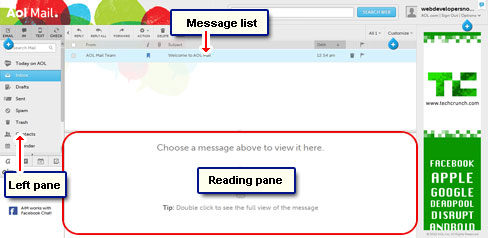
- The webmail interface can be divided into 3 main segments – the (1) left pane that has links to folders, Contacts and the Calendar, the (2) message list and the large (3) reading pane below [Slide 5].
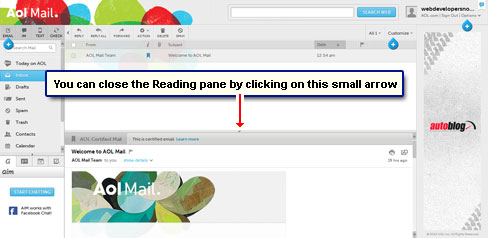
- Though the “Reading Pane” can be turned off, it’s a good idea to keep it visible because you can then look at the email list and the contents of the selected message at the same time [Slide 6]. This helps in quick scanning of the messages in your account.
- The column on the left has links to the default folders in the AOL email account as well as the folders you create to organize messages as per your requirements. Also, “Contacts” and the “Calendar” are just a click away.
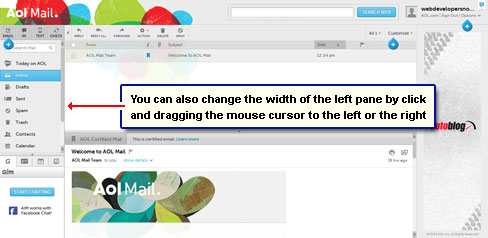
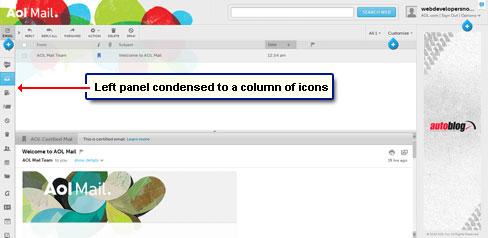
This left panel always remains at this location and it’s width can be changed – increased or decreased. Move the mouse cursor over the thin line to the right of this pane till it turns to a double arrow icon and then drag it to the right or left [Slide 7]. The left panel can also be folded into a column of icons [Slide 8].
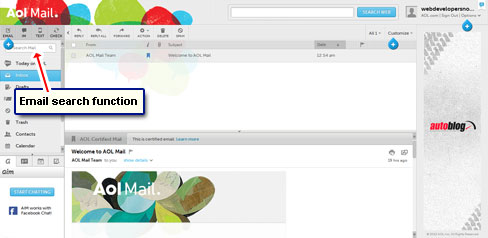
- The search function, a very important and time saving utility, is located at the top of the left pane [Slide 9].
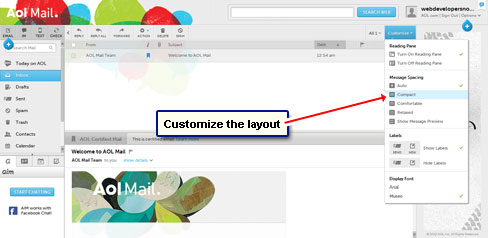
- You can change the spacing and make the interface compact or more relaxed. These options are present in the drop down menu when you click on the “Customize” button [Slide 10]. Check them out and choose the one you like.
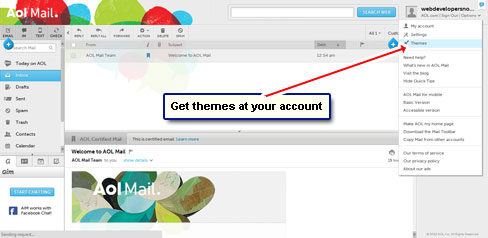
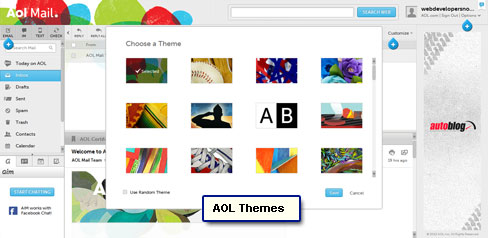
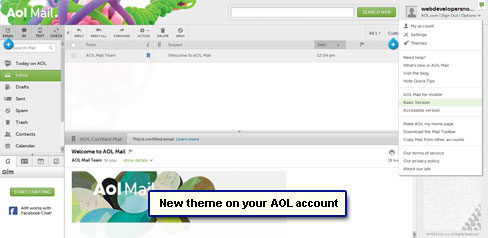
- AOL webmail also offers themes to add a little spice to the page. Though the layout of the email account won’t change drastically, as with Gmail themes or Hotmail themes, you do get a new background image (top left). Click on “Options” [Slide 11] and select “Themes” [Slide 12]. A pop-up will appear with the various available themes. Choose one to have it applied immediately at your AOL account [Slides 13 and 14]. Hit the “Save” button to preserve the changes you’ve made [Slide 15].
- Here I’ve selected the Holiday theme [Slide 16]…why? Because Christmas is right around the corner! Jingle bells… Jingle bells…
These were just some of the features of the AOL webmail. Why don’t you play around and get to know them a little more? Don’t worry, the computer is not going to jump up and bite you! Have Fun!