AOL login - access email account
Sponsored Links
Written chiefly for the beginner, this article describes how to access an AOL email account via the login page. Assuming you have an active internet connection, all you need is a web browser, the same program you are using to read this page, and the login information of your account.
A brief on email for the newly initiated
Your free email account resides on the AOL servers - computers connected to the internet 24/7/365. The simplest way to access it is through a web browser in which you load the AOL login page, enter the required username and password and click the "Sign In" button. On successful login, your email account will be presented in a webmail interface through which you can compose (new messages, replies or forwards) and organize messages.
Please note that using an email account via webmail does not download messages to your computer - the email messages continue to be stored on the AOL servers. If you lose the internet connection you will not be able to access the account.
AOL login - sign in at your email account
The AOL login page is located at webmail.aol.com. Type in the address in a new browser window / tab or click on that link and follow the steps below.
If you are seeing this text, you need to install the Flash player and turn JavaScript on in your browser.
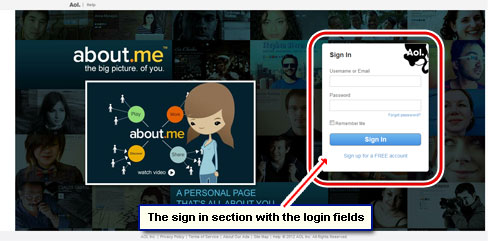
- At the time of writing, the login page is divided into two parts. The big section on the left shows random tips and advice on how to use the AOL email account [Slide 1].
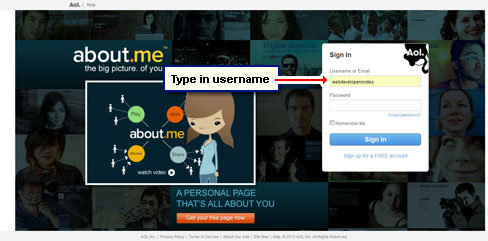
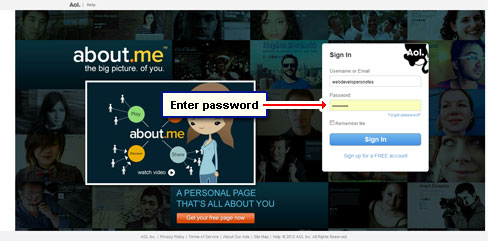
- The "Sign In" section is the one on the right. Please enter the AOL email login information in the proper fields - the username and password [Slides 2 and 3].
- "Remember Me" [Slide 4]: You don't need to enter the username and password each time you want to check the email account. The "Remember Me" feature stores the login information on your computer and this helps in going directly to the account in future bypassing the AOL login page completely.
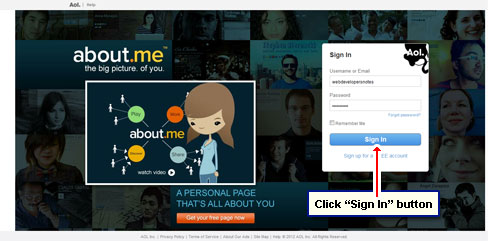
However, this convenience has its price. If you don't use the username and password for a long time, you might just forget them. Don't think it can't happen to you because I get tons of email each day from distressed users who cannot access their accounts. Another word of caution: Leave "Remember Me" unchecked on public computers such as those in internet cafes. - Click the large "Sign In" button to get to your account [Slide 5].
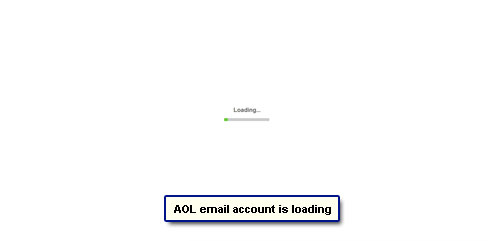
- Patiently wait for the service to log you in [Slide 6].
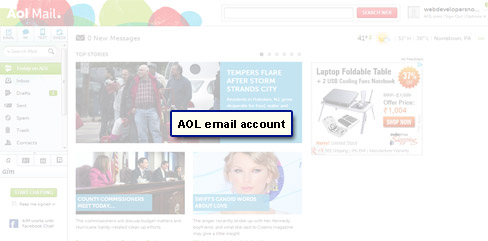
- Your email account will be shown on successful login [Slide 7].
- In the event of problems, click the "Help" or "Trouble Logging In?" [Slide 8].
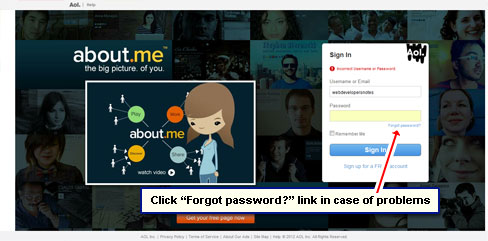
- If you've lost the AOL password, click the "Forgot password?" link and follow the instructions to reset it [Slide 9].
I cannot stress enough the importance of making a secure password - it's like the access key to your email account. Do not share it with anyone. Also ensure that all the information you had entered when making the AOL email account is correct and updated including the security question!
Please understand that the AOL login page might change from time to time. If you find the screenshots in the slideshow markedly different from what you get, please leave a note and I'll make appropriate changes.
Page contents: AOL Login: Webmail access to AOL email account through a web browser.
Comments, questions, feedback... whatever!
Recent Articles
Recent Blog Posts
Popular Articles
- Hotmail Sign In page
- Create a Hotmail account - Instructions
- Create Gmail address
- Download and install Outlook Express
- Get your free Gmail address
- Outlook Express new version
- Create my own email address
- Browers for Windows list
- Get email address
- Color combinations for web sites and pages
- Create Yahoo ID
More web tips & tricks
- Outlook Express Help - tips & tricks (53)
- Windows Live Mail help and tips (36)
- Windows Mail help (25)
- Hotmail help and tips (42)
- Yahoo help & support (45)
- AOL email help (26)
- Gmail help and tips (36)
- Internet tips & tricks (12)
- Web Design tips & tricks (33)
- HTML, Javascript tips tricks (68)
- Web Promotion tips & tricks (8)
- Graphics tips & tricks (20)