In this article I’m going to detail the AOL email toolbar – the one that is displayed at the top of the large text box in which you compose the message. If you’ve arrived on this page looking for the AOL web browser toolbar, get it from here.
AOL, like all the other popular email services, lets you compose messages in both plain text and rich-text formats. Normally, most people wouldn’t care for vanilla text messages because everyone now has a fancy email program or uses a service that can display email with all the fancy formatting a 10 year old can stuff in.
Sponsored Links
Format email message with the AOL toolbar
In AOL, composing email in rich text format is selected by default which means the toolbar should be displayed at the top of the large text box. If it’s not, make sure you have the “Use Rich Text / HTML Editing” option checked under “Settings” -> “Compose“.
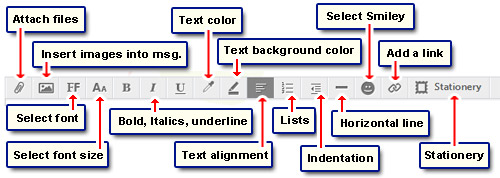
The toolbar offers one-click beautification options. You can either compose the entire message and then embellish it or apply the formatting as you go along. The toolbar has several icons and placing the mouse cursor over these displays a small tool tip. Here is how you can decorate an email message.
- File attachment: Lets you send any kind of digital file – video, audio, image, text document etc. – with an email message.
- Insert picture: Not only can you send a photo as an attachment, AOL also lets you insert the image directly inside an email message. Learn how to insert photos inside an AOL email message.
- Font type: At the time of writing, there are 9 fonts available at AOL – Arial, Comic Sans, Courier, Georgia, Impact, Tahoma, Times New Roman, Verdana and WingDings. The last one lets you put small font images (dingbats) in the message.
- Font size: AOL believes that text larger than 36pt makes you so un-cool!
- Text emphasis: You can bold, italicise or underline selected text.
Important note: I strongly advise against using underlined text in email. It is almost always interpreted as a link… which it is not! - Text color and background color: Lets you send that resignation letter with green text on a bright pink background!
- Text alignment: Do not send messages with the entire text center aligned – most annoying email to read.
- Organize with lists: Create numbered or bulleted lists.
- Indentation: Allows you to place text slightly away from the left margin.
- Horizontal rules are an ideal way to segregate content.
- Smileys: Always hated those things but some people just love them. Smileys, also known as emoticons, are small images through which you can portray emotions (What the…?).
- Links: Through this utility one can create linked text. You can, thus, select text and have it point to any file on the Internet – a web page, a web site, a document, a YouTube video… anything. The recipients would, typically, see this as underlined text, which when clicked will take them to the web resource.
- Stationery: Apply nice background images and colors to suit the occasion.
Coupled with AOL email stationery, the rich-text toolbar can help you create a killer email message!
By the way, a similar kind of toolbar – though toned down – is present above the AOL email signature composition box.