Want to download an image from a web page but don’t know how to go about it? This page will guide you through the basic steps of getting the image you want.
However, please note that an image can be embedded in a variety of ways on a web page. The most common method is through the HTML <img> tag. Nowadays, most modern browsers have excellent support for cascading style sheets (CSS) because of which savvy web developers use these to put images on web pages.
In any case, if you see the image in the browser, you will be able to save it on the computer. Whether the image has been included with the <img> tag or with CSS, the image can be downloaded! In fact, you can even get images from on web pages that run JavaScript code that prevents right clicks (and thus, prevent the menu from displaying).
Sponsored Links
If you see the image, you’ve already downloaded it!
The web is a multimedia environment with text, images, video, animation (flash) and audio. And it is all brought about by web browsers, programs that present us web page contents and let us navigate across web sites. Actually, without browser programs the web would not have been possible.
Jump straight to instructions to download images from web pages or read a brief on how web browsers work.
Web pages and their associated contents are stored on web servers – computers connected to the Internet 24/7. A web browser is a software application that connects to the web server and downloads the web page and its contents including images, video, animation, audio etc. and displays these as they arrive at your computer. So if you see an image on a web page it has already been downloaded to your machine. The only thing left is to save it.
The instructions below are for the most popular Windows based web browsers. All you need to do is to take your mouse cursor over the image and then right-click (the right button on the mouse) and select the appropriate option from the menu.
Download image from web page using Firefox
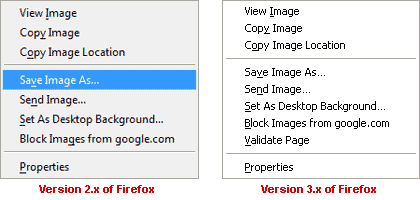
Under versions 2.x and 3.x of the browser, select “Save Image As” and navigate to the directory in which you want to download the image. You can also use “Copy Image” option and then open an image editor (such as MS Paint that comes preinstalled on the Windows operating system) and paste the image as a new document.
Save images from web pages in Internet Explorer
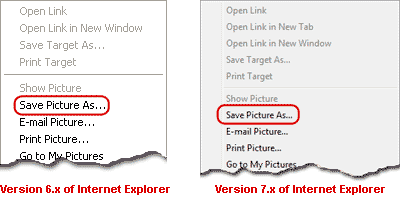
The Internet Explorer browser throws a much bigger menu (as compared to Firefox). Select the “Save Picture As…” option in both version 6.x and 7.x of the browser, and move to the directory on your hard disk where you want to download the image. Click on the “OK” button – image from the web page is saved!
Using the Opera web browser to download image
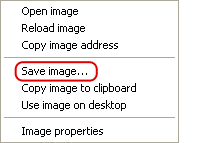 In the nifty little Opera browser, select the “Save image…” option and then navigate to a directory on your hard disk in which you want to save a copy of the image. You can also select “Copy image to clipboard” option and then paste it in your favourite image editor such as Adobe PhotoShop or the free MS Paint (you’ll find it under Accessories in Windows).
Macintosh Safari for downloading images from web page
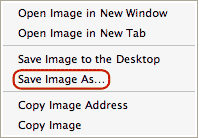 Just like Opera, the Safari right-click menu is small too. Selecting “Save Image As…” and then moving to the directory of choice will download the image to your computer. You can even copy the image onto the clipboard with “Copy Image” option.
Download images from web pages through Google Chrome
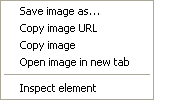 Google Chrome (my browser of choice) presents the smallest menu when one right-clicks over an image on a web page – and that’s what I have really loved in the program – simple and intuitive interface and no unnecessary options. The “Save image as…” option lets you download the image to a specified directory on your computer, “Copy image” will put it in the clipboard so that you can paste it in any image editor (preferably), “Copy image URL” will get you the web address of the image and “Open image in new tab” will load a new tab with only the image (this is one feature I use frequently).
Cannot download image from a web page
Are you facing a problem? Refer cannot download and save image from web page. Remember, if you can see the image in your browser, it has come to your computer – you just need to think outside the box to save it for your use. And on that point, images on the web will definitely have copyrights attached so please do not blatantly copy and use them. For tips and how to do about it read using images from the web.