
As mentioned in other articles, the one feature of the Chrome web browser I really like is the simple interface and the single text field which functions both as a URL/address bar and a search field. This is called the Omnibox and accepts both web addresses (URLs) and search queries. The latter is processed by the default search engine you’ve set in Chrome.
Chrome, being a Google product, comes with the Google Search Engine as the default. However, you can change it quite easily via the settings and options. The best part is you are not restricted to searching only the web (web page text information). Simply change the default search engine on Chrome and you would be able to run queries on YouTube, ebay.com, and even your local “whatever” search engine.
Sponsored Links
For instance, let us say, you are an avid fan of YouTube. You spend hours on end viewing and downloading videos, making DVDs and viewing them on TV, putting them on your iPod, iPhone, iTouch, PSP, sharing with your friends.
Or, maybe, ebay.com is your lifeline – you may be a compulsive shopper or you might be a running a successful store.
Wouldn’t it be great if you could search YouTube or ebay.com right from Google Chrome?
Modify the default search engine on Chrome
On Google Chrome, you can have a long list of search engines which can be modified whenever you want. However, search queries are processed only through the default engine.
 Click on the small “wrench” icon (top right) and select “Settings” (refer image to the left).
Locate the “Search” section which shows the engine being used by Chrome’s Omnibox. Click on it to display a list of the default search engines specified in the web browser. If the one you want is on this list, simply select it and you are done – refer image below. Note: There is no “Save” button.
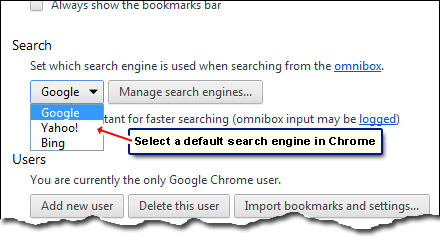
Do not fret if the drop down in the image above does not match the one on your system OR the search engine you want is not on the list. In a moment I will show you just how to add your preferred search engine to this list – and also make it the default on Chrome.
Manage Chrome search engines
Click on the “Manage search engines” button. A window pops up with a long list of search engines that have been used on Chrome. You can change this list as per your requirements- add new search engines, edit the ones in the list or even delete them altogether.
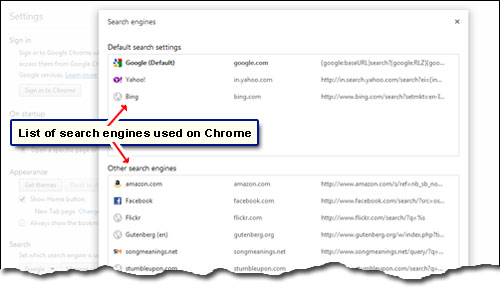
Note: the list is broken into two. The top has the default search settings while the latter section shows “Others search engines” that you have probably employed in the past or popular search engines that Chrome thinks might be useful to you.
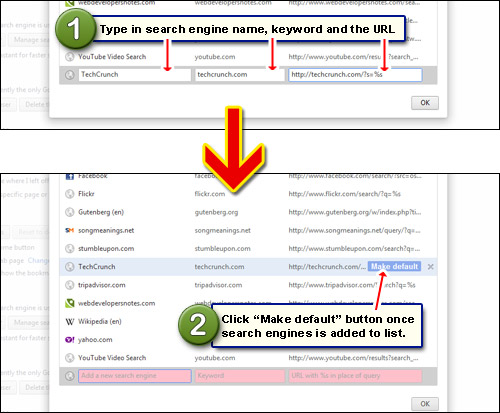
If you cannot find the search engine of your choice in the list, scroll down till you read the end. You’ll see three empty fields. Populate these with the appropriate information – the search engine name, a keyword and the search URL (put %s where you want the query to appear in the URL). Click “OK” and the search engine will appear in the list. Take the mouse cursor over it and click the “Make default” button. Refer the image below for the two steps.
Update: Actually, there is an easier way to get the job done. Open a new browser window and go to the search engine / site you want to add. Locate the search feature and use it at least once (query anything you want… it’s not important). In all probability, the search engine / site would be added to Chrome’s list. You can then make it the default – no need of fiddling with the URL or the keyword! Now doesn’t that make you love Chrome?
Default search engine in Chrome
The Chrome web browser is installed with Google search engine as the default. You can change this by selecting one from the Manage window and hitting the “Make Default” button. For instance, you can make the YouTube search engine the default and you’ll get results only from YouTube.